
System
Settings — System
The System settings section provides information about the detector and allows you to configure storage behaviour, update the software, and reboot the system. Navigate to Settings → System to open it.
It is divided into four tabs: About, Storage, Maintenance, and Reboot.
About
The About tab displays read-only information about the device.
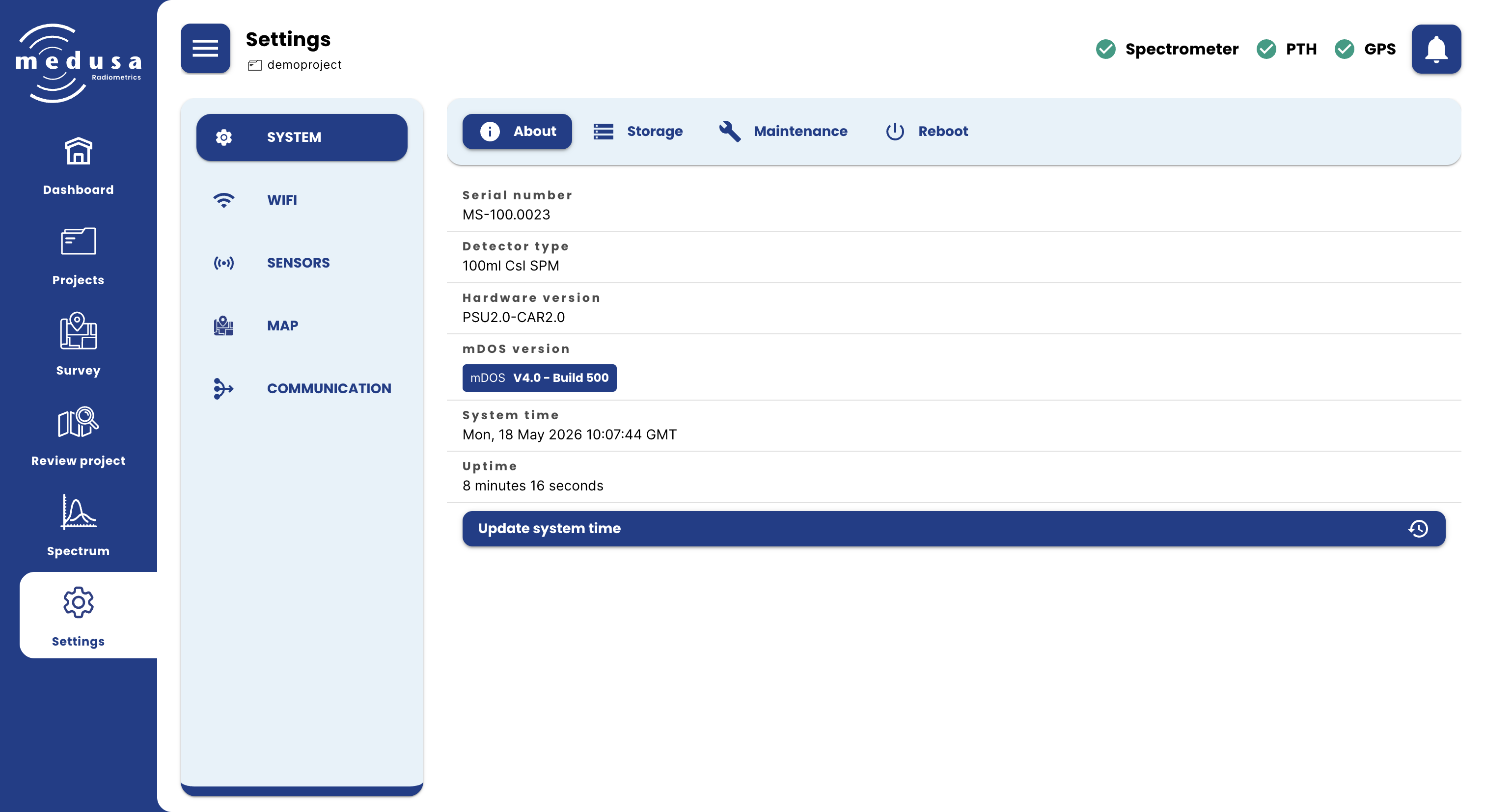
Field | Description |
|---|---|
Serial number | The unique serial number of the spectrometer |
Detector type | The type of scintillator crystal inside the spectrometer |
Hardware version | The hardware version, shown as a combination of the PSU and carrier board version |
mDOS version | The version and build number of mDOS running on the device |
System time | The current system time of the spectrometer |
Uptime | The time the system has been running since last boot |
Update system time — Synchronises the detector's clock. When the detector has an internet connection, the time is taken from an online time server (NTP). Otherwise, the time of the device you are using to access the interface is used.

Note: Correct system time is important for accurate timestamps in your data. Update the time before starting a measurement if the detector has been stored without power for an extended period.
Storage
The Storage tab shows the current storage usage and lets you configure how the detector handles a full disk and the paused state.
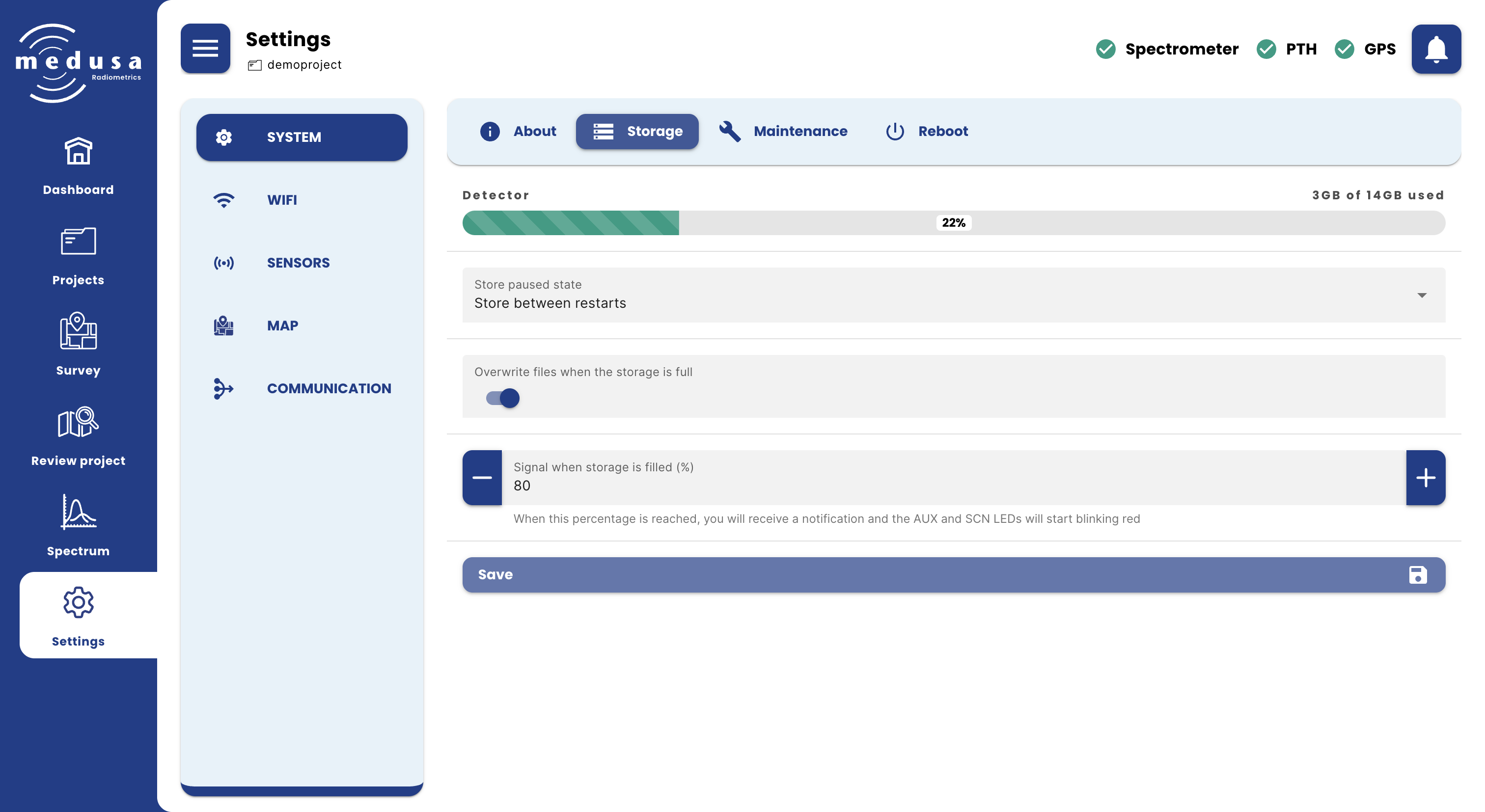
Detector — A progress bar showing how much of the total storage is currently in use.
Setting | Description |
|---|---|
Store paused state | Controls how the paused/active state is handled across reboots: |
Overwrite files when full | When enabled, the detector automatically deletes the oldest project when the storage becomes full. The oldest project is determined by the last time data was written to it, meaning the project that has been inactive for the longest time is deleted first. |
Signal when storage is filled (%) | The storage percentage at which a notification appears and the AUX and SCN LEDs start blinking red. |
Click Save to apply changes.
Maintenance
The Maintenance tab provides tools for updating the software, downloading logs, and restoring factory defaults.
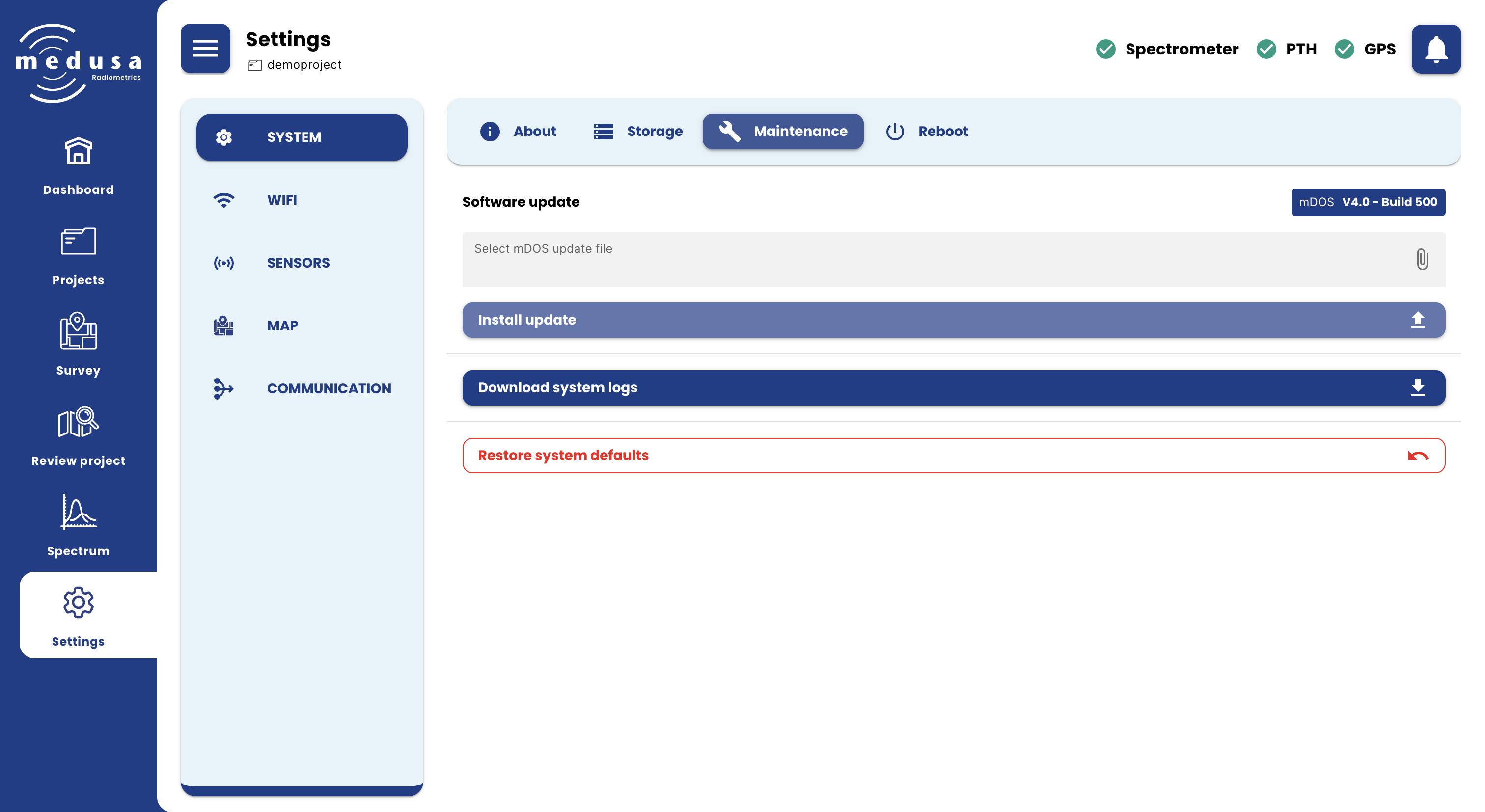
Action | Description |
|---|---|
Software update | Upload an mDOS update file and click Install update to apply it. The current version is shown in the top right corner of the dialog. |
Download system logs | Downloads the system log files. These may contain debug information. Medusa may request this file when investigating a detector issue. |
Restore system defaults | Resets all settings to the factory defaults configured by Medusa before shipping. Project data is not affected. |
Reboot
The Reboot tab contains a single Reboot system button that restarts the detector.