
Project management
Project Management
The detector is always logging data to the active project. Projects let you organise measurements by date, location, or field — making it easy to find, review, and download specific datasets later.
The Project List
Navigate to Projects in the sidebar to see all projects stored on the detector.
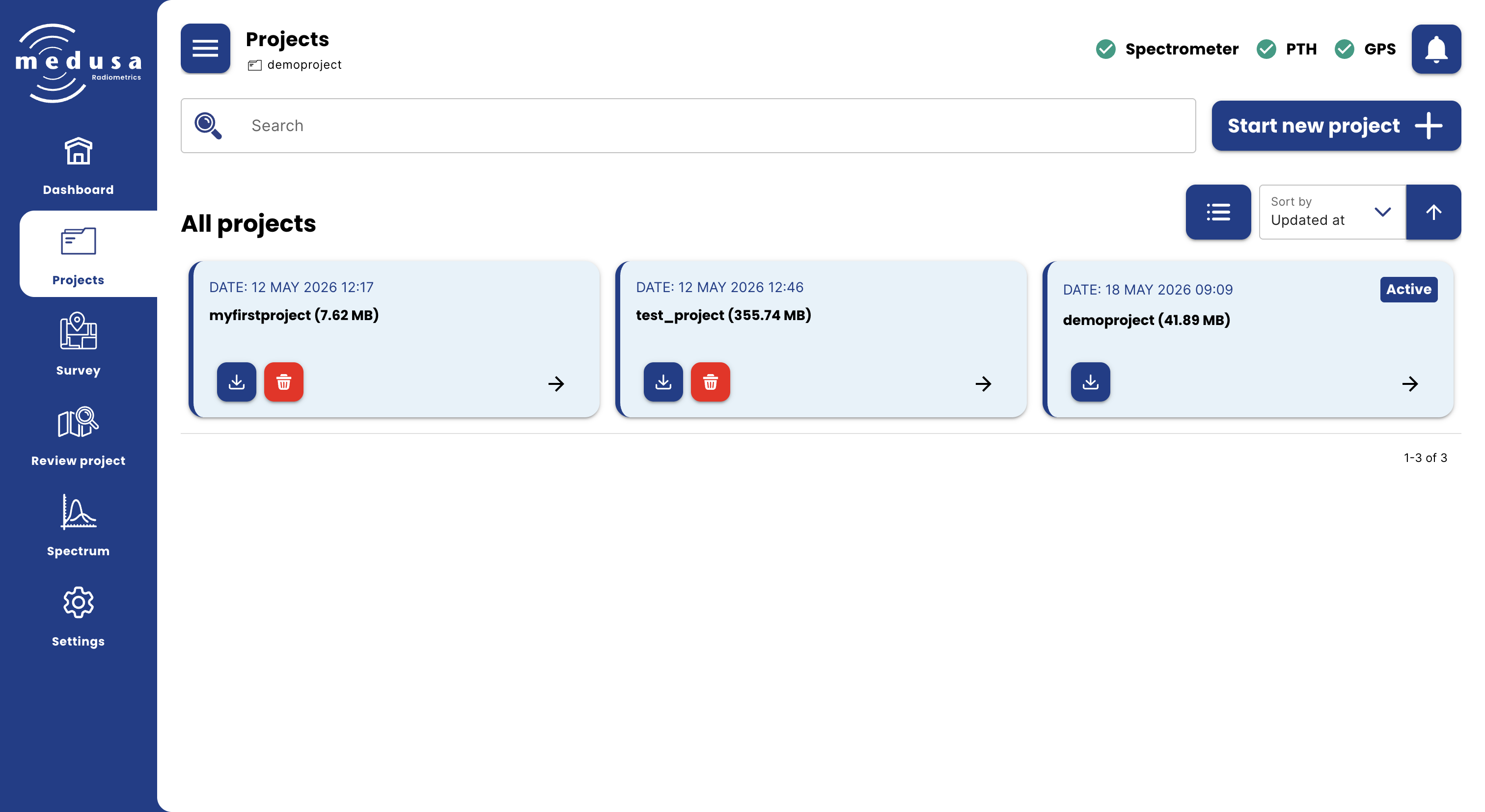
Each project shows the following information:
Field | Description |
|---|---|
Project name | The name of the project. The currently active project is marked with an Active badge. A project that has reached the size limit is marked with a Full badge. |
Description | An optional description entered when the project was created |
Size | The current size of the project on disk |
Created at | The date and time the project was created |
The list can be sorted by creation date, last updated, size, or name — in ascending or descending order. Use the search bar at the top to filter by project name.
Card View and List View
The project list can be displayed in two ways, toggled with the view button in the top right:
Card view — shows each project as a card with its date, name, and size
List view — shows all projects in a table, and enables bulk selection for deleting multiple projects at once
Creating a New Project
Click Start new project on the Dashboard or Projects page. Fill in the form and confirm.
Field | Description |
|---|---|
Project name | Minimum 4 characters. Only letters ( |
Description | Optional. Useful for noting the location, date, or purpose of the measurement. |
The new project immediately becomes the active project and you are taken to the Survey page.
Continuing an Existing Project
To log new data into an existing project, open the project drawer by clicking the arrow (→) on a project and select Continue project. The project becomes active and you are taken to the Survey page.

Note: A project marked Full has reached the 1 GB size limit and cannot be continued. It can still be reviewed and downloaded.
Opening a Project for Review
To inspect the data in a project without making it active, click the arrow (→) on a project and select Review project. This opens the project in the Review project page.
See Reviewing and Downloading Data for a full description of the review tools.
Downloading a Project
Click the download button on any project to open the Download project dialog.
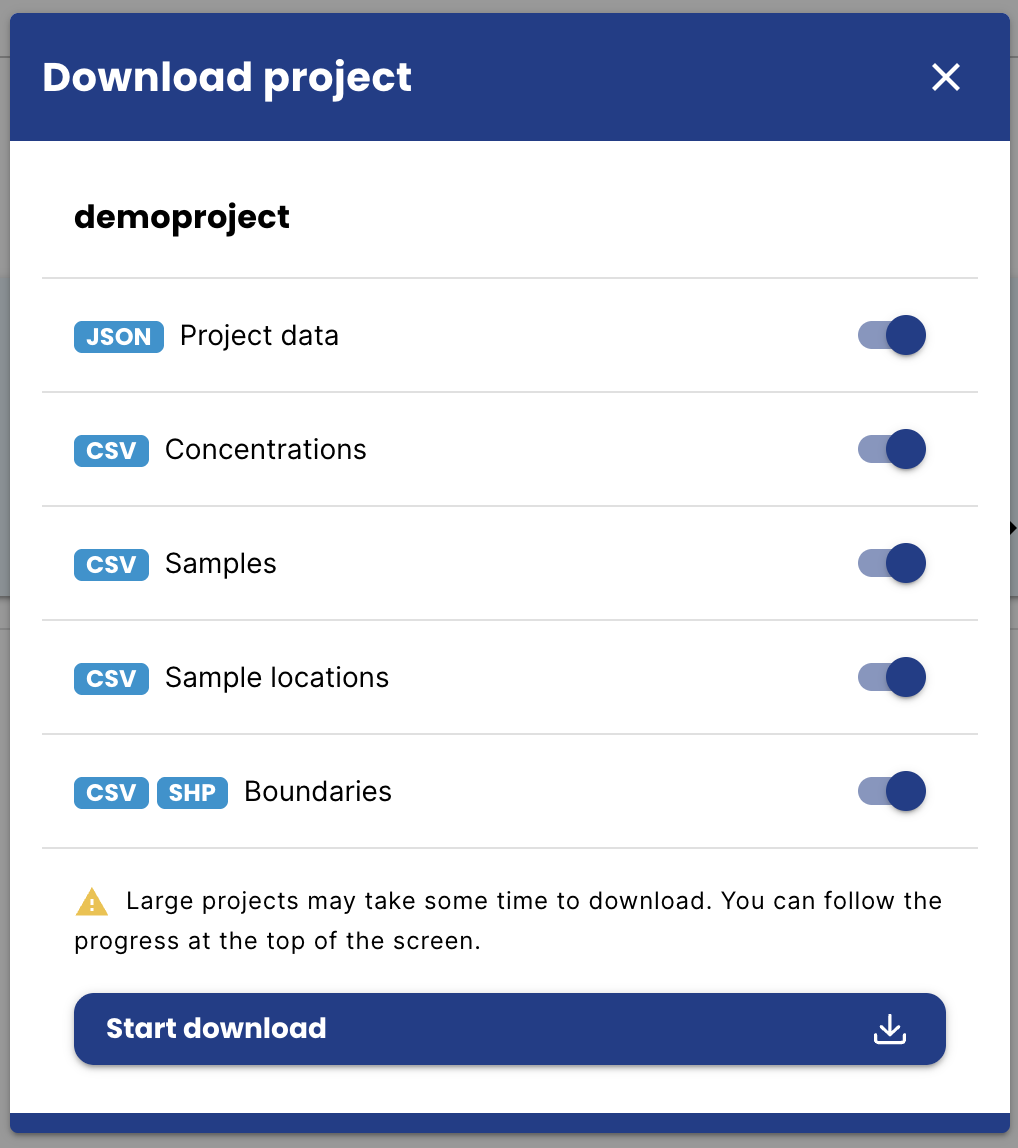
Select which data to include in the download:
File | Format | Description |
|---|---|---|
Project data | JSON | All raw and processed sensor data. These files can be loaded and re-analysed in GammAn. |
Concentrations | CSV | Georeferenced radionuclide concentrations calculated at the time of recording. Units used: Bq/kg, ppm, or ppm oxides. (This can be changed in Settings → Spectral → Display units) |
Samples | CSV | Sample measurements recorded in the project |
Sample locations | CSV | Suggested sample locations calculated in the project |
Boundaries | CSV, SHP | Boundaries drawn in the project |
Click Start download. The progress is shown in the header in two stages:
Generating concentrations CSV — if concentrations are included, the detector calculates and writes the CSV file first. A percentage shows the progress.
Zipping files — once all files are ready, the detector compresses them into a zip file. A percentage shows the progress.
When complete, your browser downloads the zip file automatically. Large projects may take some time — keep the browser open until the download starts.
Deleting Projects
Click the delete button on a project to permanently remove it. Deletion cannot be undone. The active project cannot be deleted — to delete it, first make another project active by continuing it.
Bulk delete is available in list view: select multiple projects using the checkboxes, then open the ⋮ menu and click Delete selected.
Storage
The total storage used by all projects is shown under Settings → System → Storage. Each individual project is limited to 1 GB.
When the detector's storage is nearly full, a notification appears and the SCN and AUX LEDs start blinking red. The percentage at which this warning is triggered can be configured under Settings → System → Storage.
If Overwrite files when full is enabled, the detector automatically deletes the oldest project when no space is available. If this is disabled, logging stops when the storage is completely full — a notification is sent when this happens. Once enough space is freed up (by deleting projects), logging resumes automatically and another notification confirms this.