Appearance
14. Importing generic spectra
How to create a Gamman project from "generic" spectra? This option is intended to allow for Gamman processing of 3rd party spectrometric data.
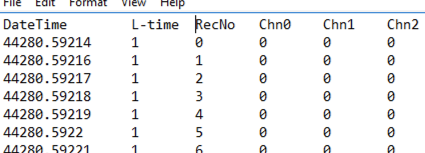
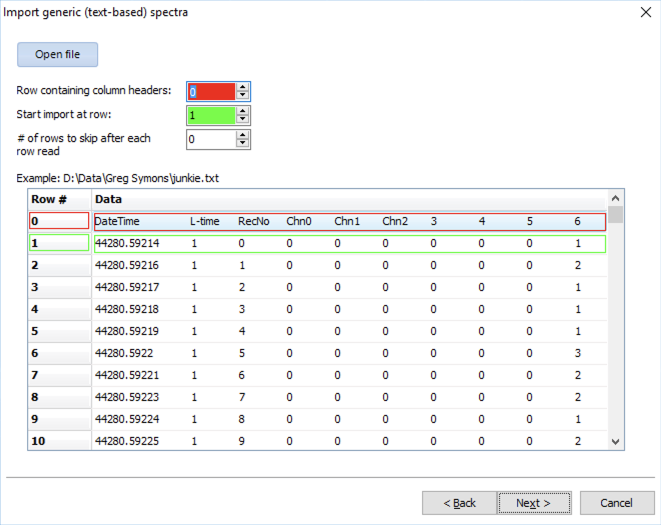
The first step is to format your data in text (CSV) format. The "minimal" lay-out of the file should be as shown below - it should contain a column containing a timestamp ("DateTime" in the example below, in Windows OLE2 format - see note below), a column having lifetime ("L-Time" in the example below) and then a series of columns equal to the number of channels in your spectrum (Chn0, Chn1, etc). Each row denotes a single spectrum record.
If for some reason, you do not have the timestamp of the spectrum records, just generate one, for instance in Excel.
Note
The OLE Automation date is implemented as a floating-point number whose value is the number of days from midnight, 30 December 1899. For example, midnight, 31 December 1899 is represented by 1.0; 6 A.M., 1 January 1900 is represented by 2.25; midnight, 29 December 1899 is represented by -1.0; and 6 A.M., 29 December 1899 is represented by -1.25. The base OLE Automation Date is midnight, 30 December 1899.
The integer part of the value is the number of days past 30/12/1899 0:00:00. The fractional part is the time expressed in the number of days as well. So, 1 second is equal to 1 / 86400.
Please note that this format does not contain information about the time zone.
The second step is to import this file using the "generic spectra import wizard" in Gamman:
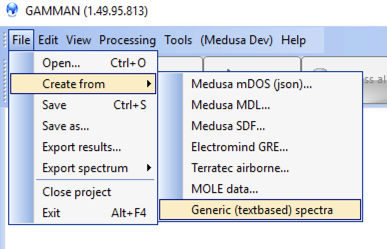
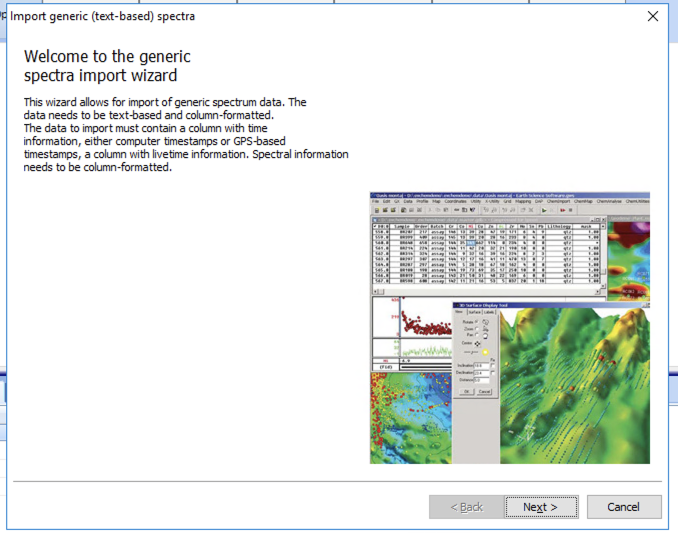
Then, select the file you just created and import:
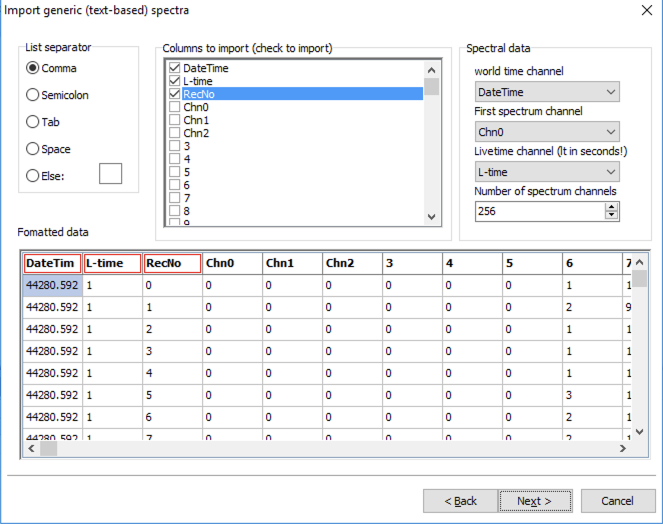
The next step is to assign the proper columns to import. See the example below:
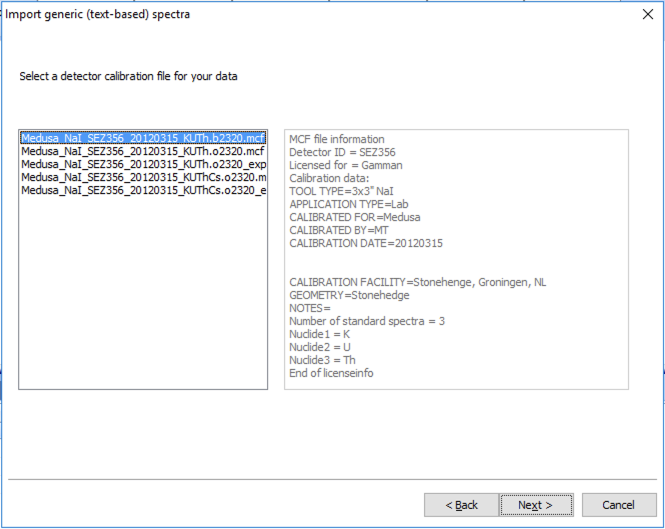
And in the next step, choose a calibration file :
And start importing!
Happy Gammaning!