

Appearance
Settings — System
The System settings section provides information about the detector and allows you to configure storage behaviour, update the software, and reboot the system. Navigate to Settings → System to open it.
It is divided into three tabs: About, Storage, Maintenance
About
The About tab displays read-only information about the device.
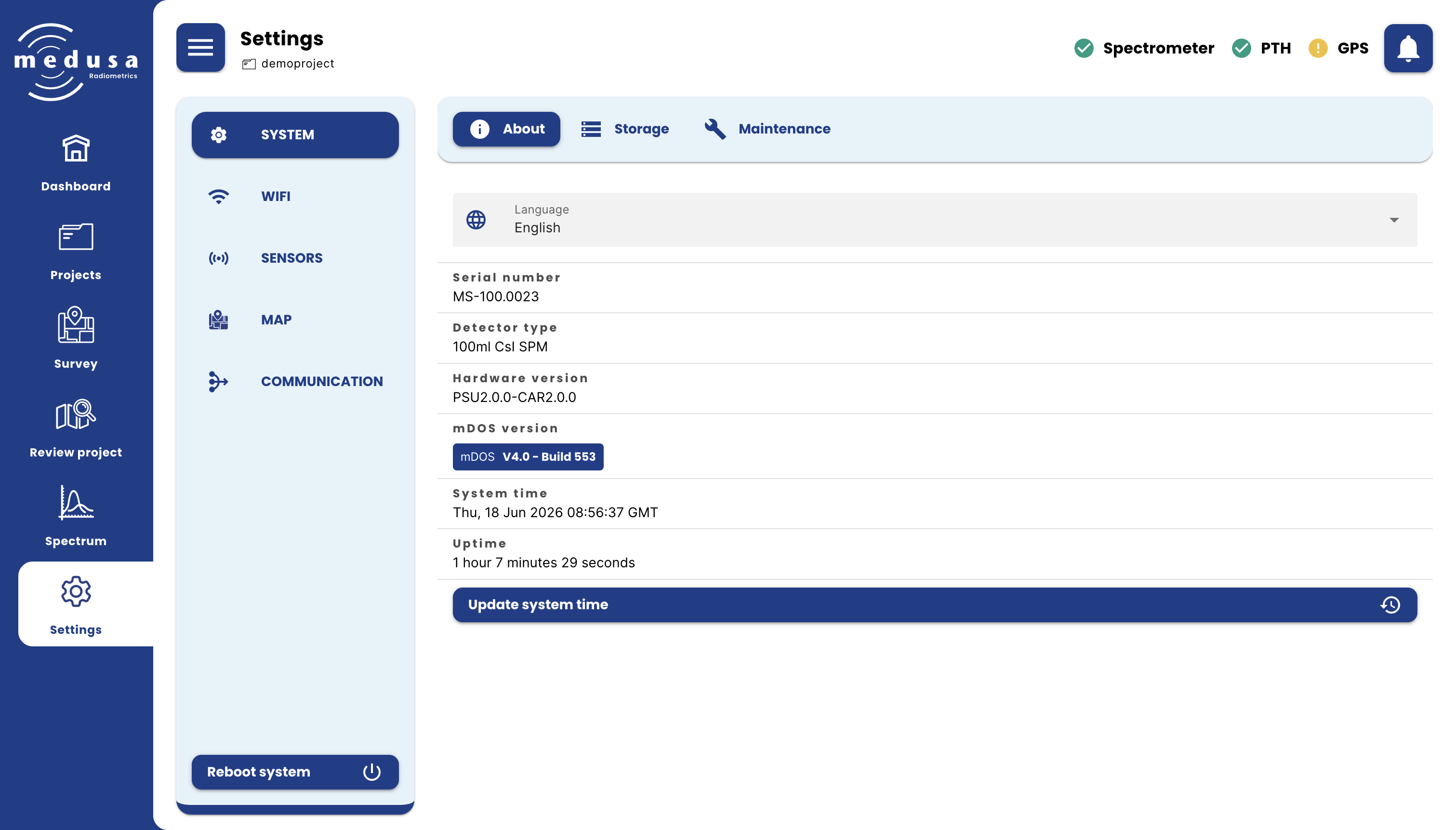
| Field | Description |
|---|---|
| Serial number | The unique serial number of the spectrometer |
| Detector type | The type of scintillator crystal inside the spectrometer |
| Hardware version | The hardware version, shown as a combination of the PSU and carrier board version |
| mDOS version | The version and build number of mDOS running on the device |
| System time | The current system time of the spectrometer |
| Uptime | The time the system has been running since last boot |
Update system time — Synchronises the detector's clock. When the detector has an internet connection, the time is taken from an online time server (NTP). Otherwise, the time of the device you are using to access the interface is used.
Note: Correct system time is important for accurate timestamps in your data. Update the time before starting a measurement if the detector has been stored without power for an extended period.
Storage
The Storage tab shows the current storage usage and lets you configure how the detector handles a full disk and the paused state.
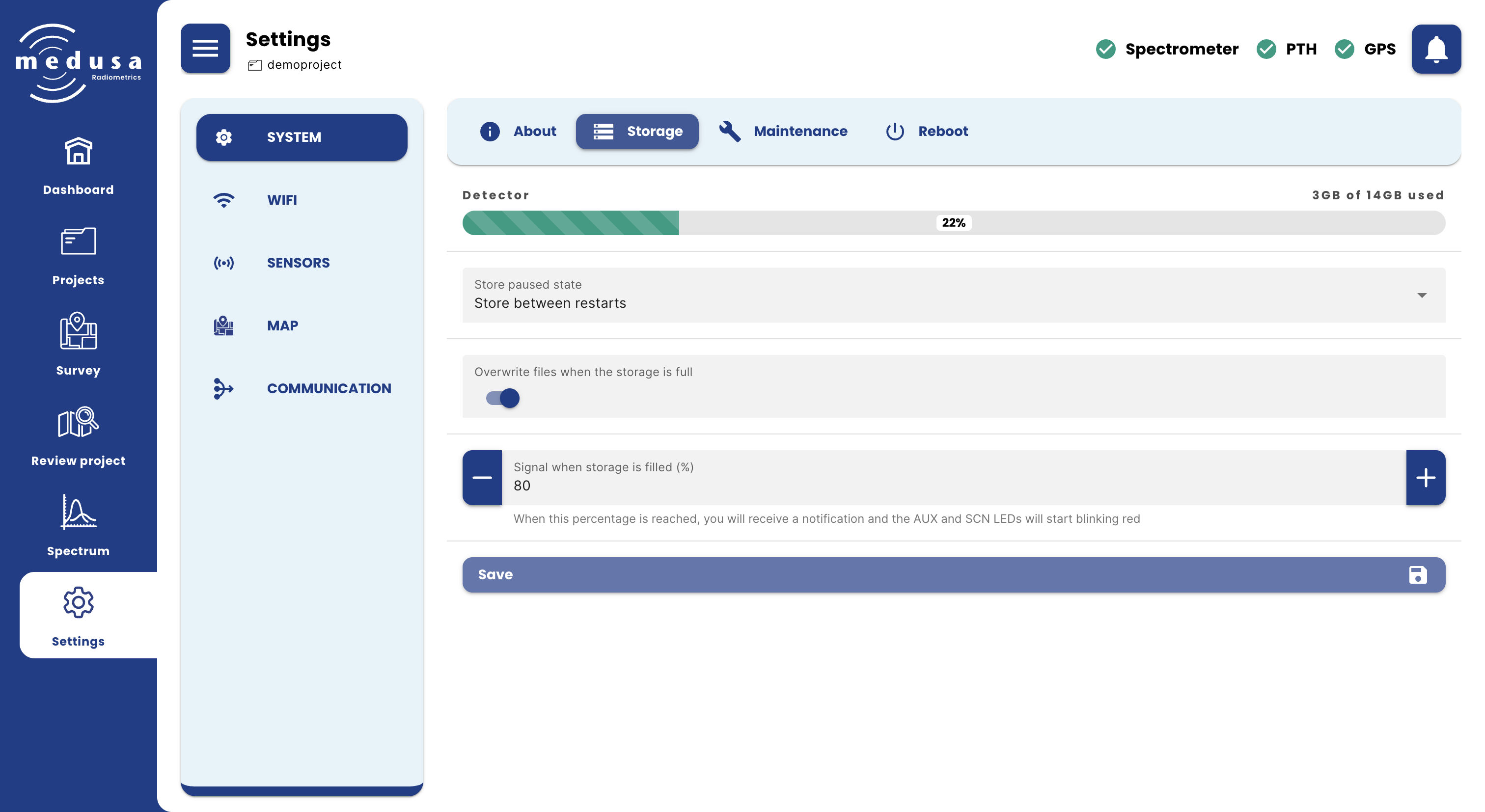
Detector — A progress bar showing how much of the total storage is currently in use.
| Setting | Description |
|---|---|
| Remember paused state | Controls how the paused/active state is handled across reboots: Do not remember — the detector always starts logging on boot. Remember between restarts — the last known state is remembered. Always start in paused state — the detector always starts paused and must be manually unpaused. |
| Overwrite oldest inactive project when full | When enabled, the detector automatically deletes the oldest project when the storage becomes full. The oldest project is determined by the last time data was written to it, meaning the project that has been inactive for the longest time is deleted first. When disabled, logging stops when the disk is full — a notification is sent when this happens, and another when logging resumes after space is freed. |
| Get a notification when storage is filled (%) | The storage percentage at which a notification appears and the AUX and SCN LEDs start blinking red. |
Click Save to apply changes.
Maintenance
The Maintenance tab provides tools for updating the software, downloading logs, and restoring factory defaults.
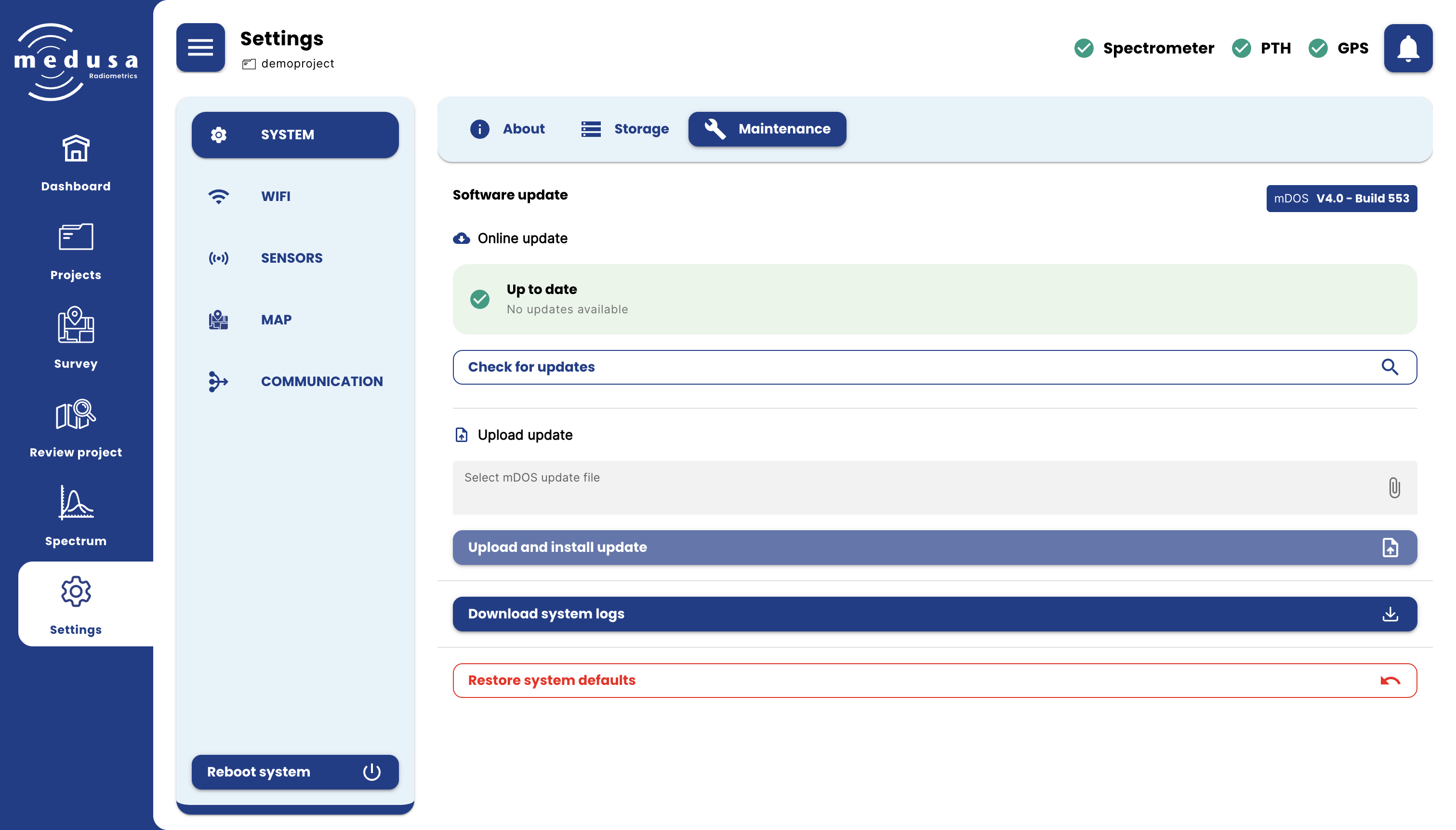
| Action | Description |
|---|---|
| Software update (Online) | When the detector is connected to the internet, you can check whether any updates are available. If an update is available, click Download and install update. The update will then be downloaded and installed automatically. After installation, the detector will reboot. |
| Software update (Upload) | Upload the mDOS update file, then click Install update to apply it. After installation, the detector will reboot. |
| Download system logs | Downloads the system log files. These may contain debug information. Medusa may request this file when investigating a detector issue. |
| Restore system defaults | Resets all settings to the factory defaults configured by Medusa before shipping. Project data is not affected. |
Note
Do not leave the screen while a system update is being installed. Leaving the screen will cancel the update, and the update will not be applied.
Reboot system
At the bottom of the Settings menu, there is a Reboot System button. Pressing this button and confirming the action will reboot the detector.